How to Login
Logging into your BBSBEC ERP account is simple and secure. Follow the steps below to access your profile or recover your password if needed.
Step-by-Step Login
- Go to the ERP Login Page.
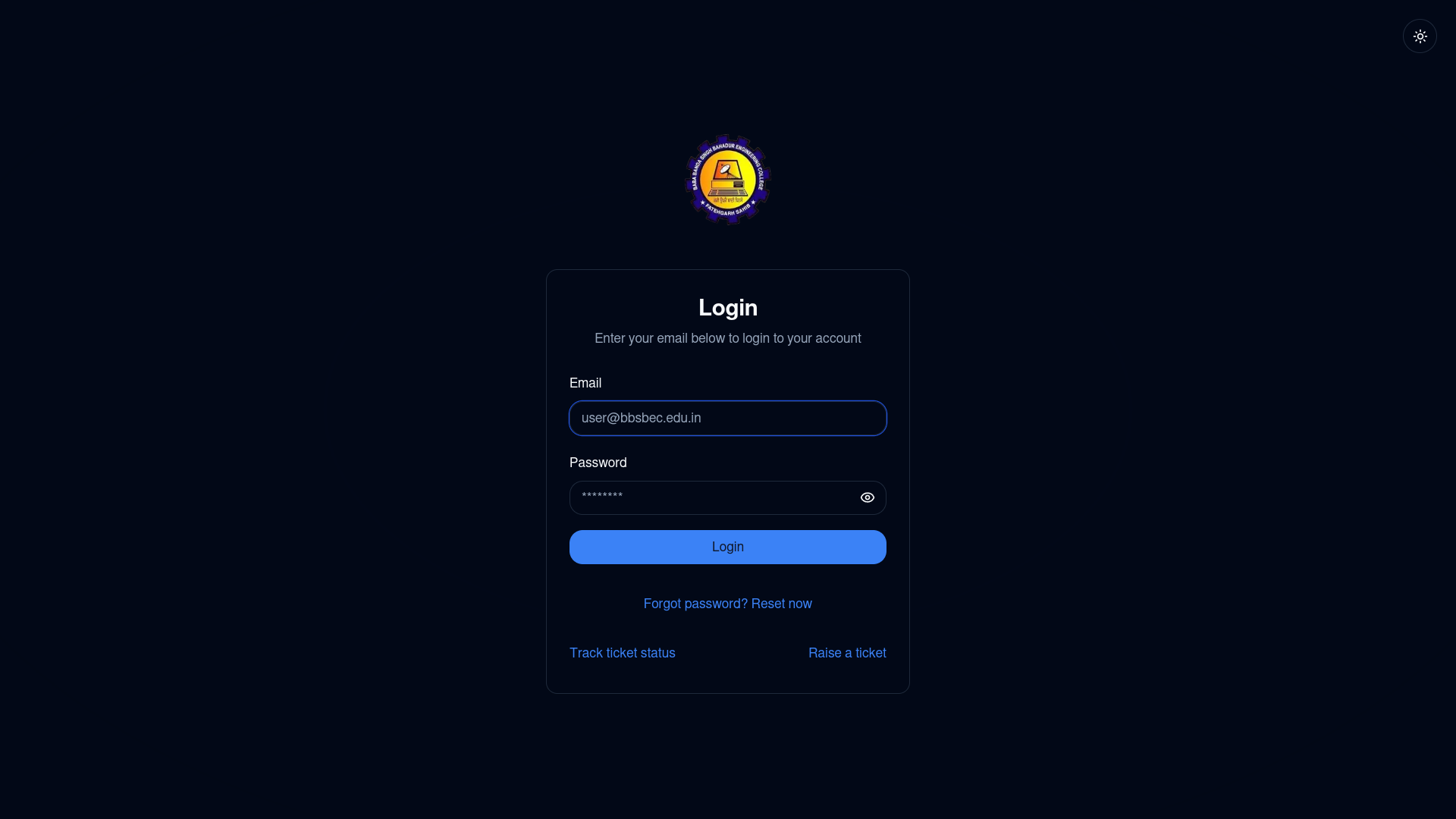
- Enter your registered email and password.
- Click the Login button.
- If your credentials are correct, you’ll be redirected to your ERP dashboard.
TIP
Make sure you’re entering the correct email and password. Passwords are case sensitive.
Forgot Your Password?
If you can’t remember your password:
- On the login page, click the Forgot password? link or go directly to the Reset Password Page.
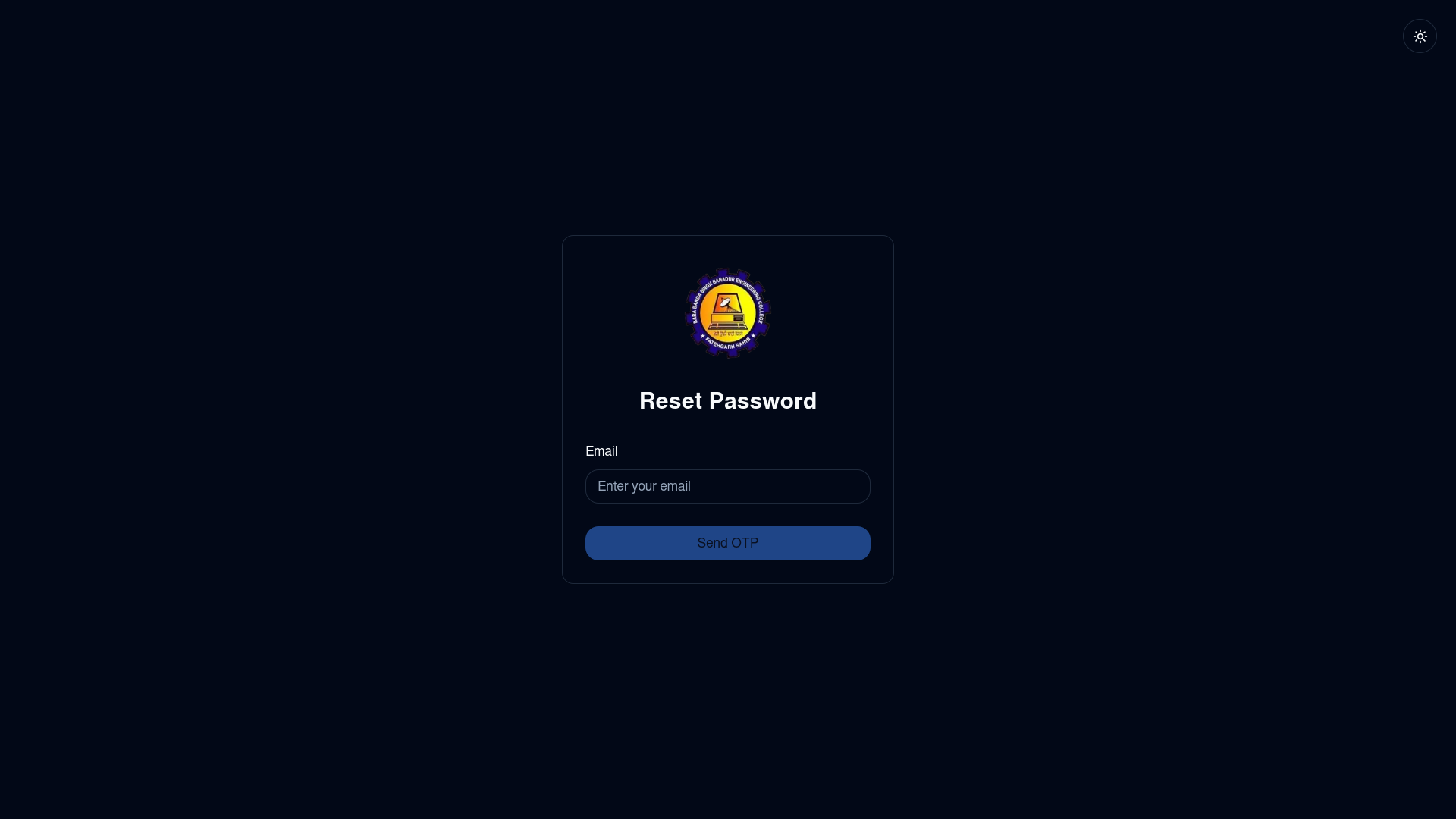
- Enter your registered email address and submit.
- If your account exists, you’ll receive an OTP (One Time Password) via email.
- Enter the OTP on the page.
- Set your new password and submit.
- The password will be updated, and you’ll be returned to the login screen.
IMPORTANT
Only accounts with a registered email will receive an OTP. Check your spam folder if you don’t see the email.
Logging In After Password Reset
- After resetting your password, return to the ERP Login Page.
- Use your updated credentials to log in.
Logout
When you want to logout:
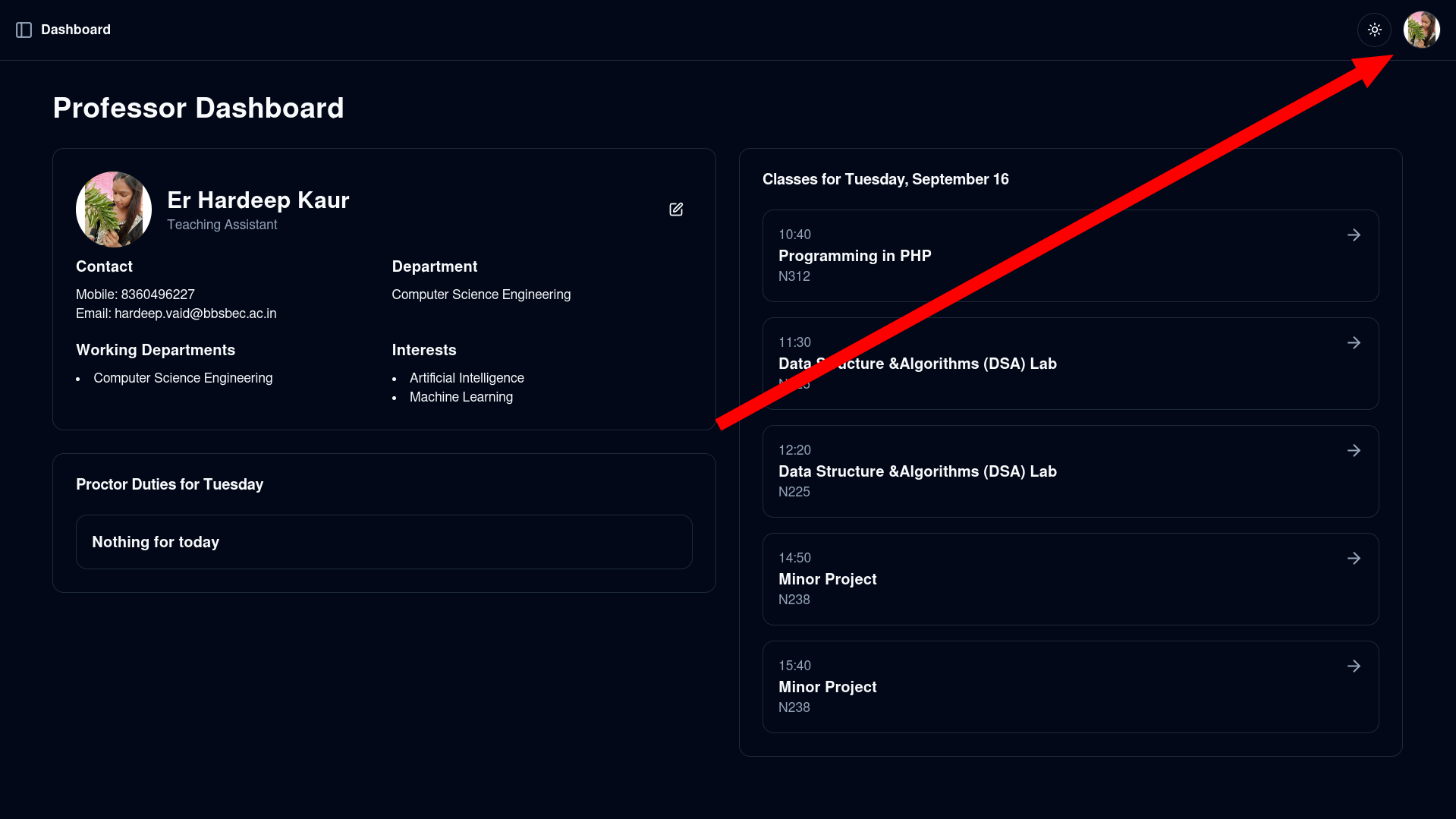
- On any page, click on the top right avatar button that will open up a dropdown menu.
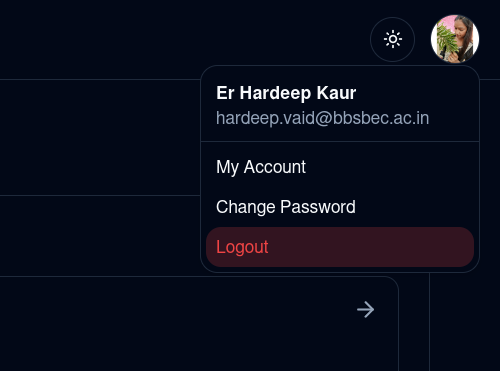
- From this menu, select logout.
- You will be logged out and taken back to the login page
TIP
You should always logout when using the ERP from someone else' system, like CSE Labs, a PC Cafe, etc.
Help & Support
If you have any difficulties logging in, please reach out to the ERP Support Team.